

If a transmission line fails and cannot transmit electricity normally, it will cause great trouble to normal production and life. Therefore, it is necessary to eliminate the fault and restore power supply in a timely manner. However, if a wire or cable fails, it is difficult to locate the fault point. Moreover, current wires and cables are buried deep underground. If the fault point is not accurately identified, blind troubleshooting is very time-consuming. Therefore, Yitiancheng Electric has developed a new generation of cable fault testers that can quickly locate cable fault points. However, many power workers find it difficult to master the use of the instrument. This article takes the YTC630B cable fault tester as an example to provide a detailed introduction to the panel and key functions of the cable fault tester.
YTC630B cable fault tester panel diagram:

1. Operation keyboard
2. Input jack
3. Brightness: used to adjust screen brightness
4. Fuse
5. Amplitude: used to adjust the amplitude of input and output pulses. Adjust according to the waveform displayed on the screen during use. If adjusted too small, the pulse reflection is very small, and sampling may even fail. If adjusted too large, the reflected pulses may be connected to the baseline without intersection, or the baseline may become a slanted line. Generally, before sampling, rotate the input amplitude knob to about 1/3, then adjust according to the waveform size and resample.
6. Power switch
7. LCD screen
Introduction to keyboard functions:
This instrument uses 14 light-touch keys as control function keys, of which 12 are dual-function keys. The keyboard layout is shown in the figure.
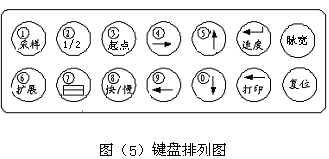
The functions of each key are as follows:
0-9 numeric keys: After power-on reset, the numeric keys can be used to enter the year, month, and day. In the test state (non-menu state, same below), when testing faults or measuring full length, when the upper left corner of the screen displays "Enter speed 000", the numeric keys can be used to enter a known speed value; in the pulse speed state, the numeric keys can be used to enter a known cable length. In short, when the screen prompts for data entry, the 0-9 keys act as numeric keys; otherwise, they serve as other function keys.
Single/dual waveform display selection key: Pressing this key can switch the screen from dual waveform display to single waveform display (in dual waveform display, the upper half of the screen shows waveform 2, and the lower half shows waveform 1), and can be switched freely. After power-on (reset), the instrument defaults to upper and lower dual waveform display and operates on storage area 1 (waveform 1). Pressing this key once will switch to full-screen single waveform display mode.
The instrument has two storage areas. After power-on (reset), storage area 1 stores data by default. When selecting to operate on storage area 2 (waveform 2), the previously sampled waveform will appear in the second waveform display area (upper half of the screen), which is normal. Press the sampling key again, and the current sampled waveform will replace the previously stored waveform.
1/2 upper/lower waveform selection key: The instrument has two internal waveform storage areas. Use this key to select one of them as the main operation area (including sampling, expansion, printing, etc.). After power-on reset, the instrument automatically defaults to operating on storage area 1 (waveform 1) (in dual-screen display, the lower half of the screen shows the waveform of storage area 1, with "1" or "2" before the waveform). After pressing this key, it will operate on storage area 2 (waveform 2). Pressing this key again will switch back to operating on storage area 1, and so on.
Start point key: In the test state, when a waveform is displayed on the screen, move the cursor to the calibration start point of the test waveform, then press the start point key to confirm the waveform calculation start point. Then move the cursor to the end point of the waveform to display the test data. As the cursor moves back and forth, the displayed data changes accordingly.
Cursor movement keys (↑) (↓): Pressing these two keys moves the vertical cursor up or down on the waveform below, used for waveform alignment and separation. (↑) (↓) Cursor left/right movement keys: Pressing these two keys moves the cursor left or right.
Fast/slow keys (←) (→): Press once, when "1" appears below the waveform, the (↑) (↓) keys become fast movement keys, moving the cursor 8 dot units per press; when "2" appears below the waveform, the (↑) (↓) keys become slow movement keys, moving the cursor 1 dot unit per press.
Sampling key: In the test state, after pressing the sampling key, the instrument enters a waiting state. When a low-voltage pulse signal or high-voltage flashover pulse signal arrives and triggers the control circuit, the instrument starts working, records the pulse reflection signal, processes and displays it. After pressing the sampling key again, the current sampled waveform will replace the previously stored waveform.
When testing faults, first readjust the input amplitude, then press the sampling key. Repeat the operation several times until the displayed waveform is standard.
Expansion key: In the non-data-entry state, this key serves as the waveform expansion display function key. Pressing this key expands the displayed waveform horizontally by 1/3. Each press expands the waveform by 1/3. When "01" appears in the upper right corner of the screen, the waveform has been expanded by 1/3. Pressing this key again restores the waveform to its compressed state.
Speed key (enter): The enter key and the speed key are the same key. When a speed value and cable length value are entered using the numeric keys, the "enter" (return) key must be pressed to confirm the data; otherwise, the machine remains in a waiting state and cannot work (no sampling). In the test state, when testing faults or measuring full length, this key is used to select one of the four common transmission speed values stored in the instrument.
